English
X Monitoring: Track New Posts and Followers
See new posts from accounts you follow and track your follower count. Set up X monitoring in Nextbrowser in four steps.

Nextbrowser handles Twitter monitoring for you. It checks X for new posts from accounts you follow and tracks your follower count. Choose an account, set how often to check and leave the app running. New posts appear in the dashboard with links to X. The follower chart shows whether your audience has grown or shrunk.
Set up X monitoring in four steps
You need the Nextbrowser desktop app and a browser profile signed in to X, formerly Twitter.
- Open Skills → X → Monitoring and choose your browser profile.
- Click Open x.com and check that you are signed in to the right account.
- Choose an interval under Schedule, then click Start.
- Wait for the first check to finish. Later checks will show newly found posts and changes in your follower count.
Here is what to look for at each step.
1. Choose your profile
In Nextbrowser, open Skills, choose the X skill and select Monitoring. Use the Profile dropdown to choose the browser profile you want to use.
If you manage a client's account, select that client's profile. The monitor will read that account's feed. It will not combine posts or follower counts from your other profiles. See our multi-account guide for more on keeping client accounts separate.
2. Check the account and Following feed
Click Open x.com. Sign in if needed, then check the handle shown in the monitoring panel. It should be the account you intended to use. If you have just signed in, refresh the account details in the panel.
The monitor reads Following, so it sees posts from accounts you already follow. For example, a brand account might follow three competitors, two partners and a few creators who cover its industry. Review that list in X before starting. The monitor does not follow or unfollow anyone for you.
3. Set the interval and click Start
Under Schedule, choose how often to check. Try 5m for your first session. The demo below uses 1m. A shorter interval checks more often but also uses the browser more often.
Click Start. The first check begins when the profile is available. If another task is using that profile, the monitor may have to wait. Keep Nextbrowser open and your computer awake while you want checks to run.
To change the profile, click Stop first. You can also stop monitoring when you no longer need updates.
4. Check that it is working
Wait for the account details and feed to update. Look for the Signed in status and the time beside From your Following feed. If a note reports a problem, resolve it before relying on the results.
On a new setup, the first successful check saves the posts already in the feed as a starting point. This is the baseline. Those posts may be visible, but New posts · 24h can still show zero. The monitor has not found anything new since it started.
Let another check run after someone you follow publishes a post. Look for a New label and open the post on X to check it against the source.
See the X monitor in action
Read the results
The dashboard brings together posts from your Following feed and the follower count from your own profile. Monitoring is read-only: it does not like posts, write replies or publish anything.
New posts
Each post shows its author, text and age. Replies have a Reply label. Media indicators show whether there is a photo, video or link. Use the button on the right to open the original post on X.
New marks posts found in the latest successful feed check. New posts · 24h counts posts announced during the last day. A post can lose its New label on a later check and still count toward that daily total.
The dashboard keeps up to 60 posts. Use it to review recent activity, not as a complete archive. For example, open a competitor's launch post, read the full thread on X and save its link in your research notes.
Follower counts
The Followers card shows your current total and a trend chart. In the recorded demo, the total changes from 50 to 51. The dashboard then shows +1 and the new-post counter reaches 3.
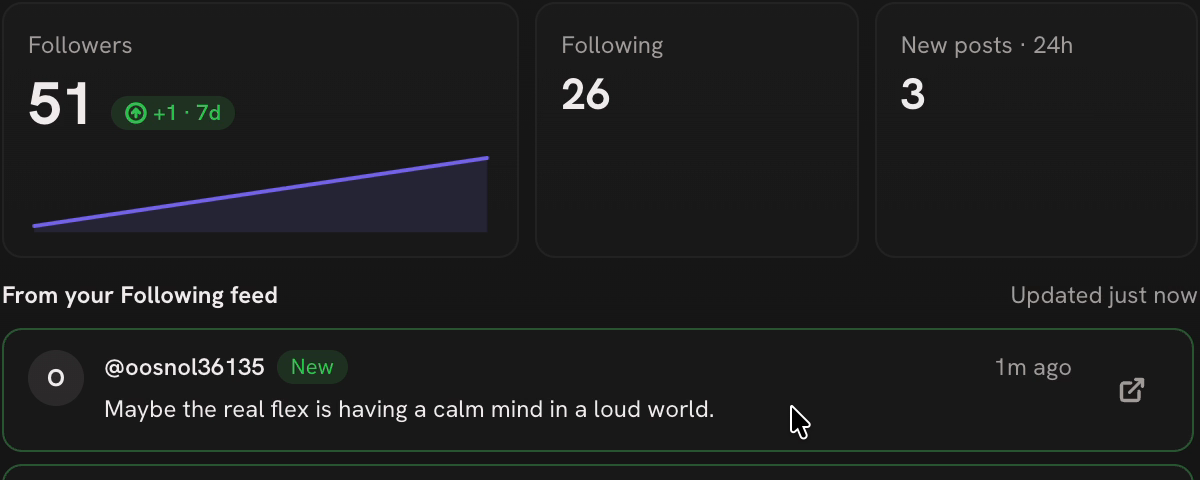
The change is a net total. A gain of one could mean two people followed and one left. It does not tell you who followed or which post brought them to your account.
The chart's change indicator uses a seven-day window. A new monitor only has the history collected since you started it; it cannot recover the previous week's counts.
If the card says Rounded by x.com, X supplied an abbreviated number such as 12.3K. That is not precise enough to measure a gain of one follower.
If something looks wrong
Check the last update time before assuming the feed is quiet. Old posts can stay on screen after an unsuccessful check.
| What you see | What to do |
|---|---|
| Zero new posts after the first check | Wait for another check. The first one records the starting point. |
| A recent update time but no new posts | No eligible new posts were found in that check. Check X directly if you expected a specific post. |
| A sign-in message | Click Open x.com and sign in to the selected account again. |
| An error note or an old update time | Read the note and use Show log for more detail. Check that X loads in the selected profile. |
| A possible gap | Review X directly for that period. The monitor may not have read all the posts between checks. |
By default, each check reads up to 60 feed entries and makes up to six scrolls. Posts older than six hours are not announced. A busy feed or a long break can therefore leave gaps, even when the next check succeeds.
After waking your computer or reopening the app, confirm that monitoring is running and wait for a fresh update time. Saved results tell you what was read earlier; they do not cover the time your computer was off.
FAQ
Do I need an X API key?
No. The monitor uses the X account signed in to your browser profile. You still need a working session and access to the posts you want to read.
Can I monitor accounts I do not follow?
For posts, this monitor uses your Following feed. To include an account, follow it from the X account you use for monitoring. Global keyword searches are a separate workflow; see our AI social media monitoring guide for the broader approach.
Can I track a competitor's follower count?
The app panel shows your own count. The open-source engine also supports tracking other accounts through its command-line tool. That option is not yet available in this panel.
Does it show who unfollowed me?
No. It tracks the total number of followers, not their identities. A lower count tells you the total fell between readings, but not why.
Does it keep running when I close Nextbrowser?
If you quit the app, its scheduled checks stop. Leave it running and keep the computer awake for the period you want to monitor.
Try Nextbrowser
Download Nextbrowser, open Skills → X → Monitoring and start with one account. Check the handle, choose an interval and let the first check finish. Then review a new post on X and compare the follower count with the dashboard.
 Nextbrowser TeamAI Social Media Monitoring: From Detection to ResponseSocial media monitoring is not about dashboards. It is about finding conversations that matter and responding before competitors do. Learn the five-step workflow and how AI browser agents run it across platforms.
 NextBrowser TeamBrowser Fingerprinting Explained: What It Means for Your AutomationBrowser fingerprinting is the reason multi-account operations get detected. Learn what signals sites check, how anti-detect browsers handle them and why Nextbrowser orchestrates the right toolset so you don't have to.
 Nextbrowser TeamGoLogin vs Dolphin Anty vs Camoufox: Features, Pricing and VerdictA side-by-side comparison of GoLogin, Dolphin Anty and Camoufox covering fingerprint management, pricing, automation, team features and detection evasion. Includes a comparison table and a verdict on which tool fits which use case.