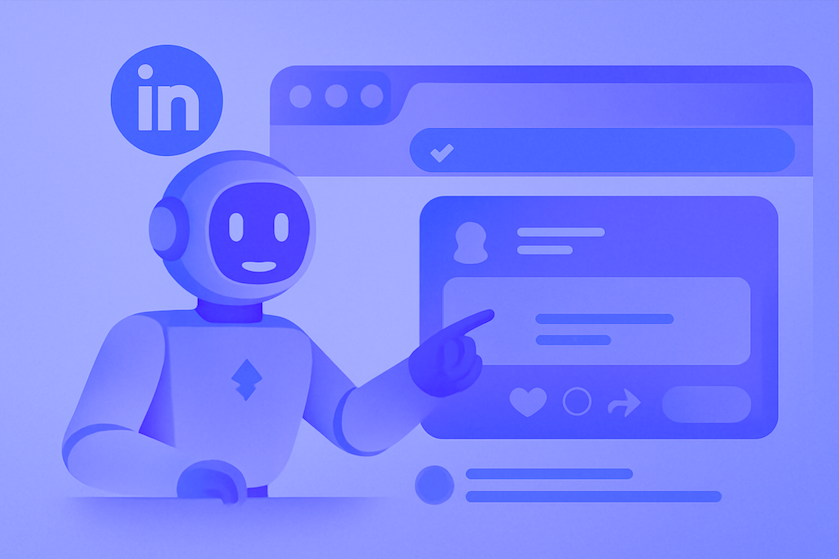

LinkedIn is a professional social network where people build careers, find job opportunities, and share expertise. Today, LinkedIn has over 1.2 billion registered users worldwide. The platform helps companies connect with talent, while professionals strengthen their personal brand and expand their network.
LinkedIn is a useful resource for accomplishing different business tasks: recruitment, promotion, brand visibility, and marketing. To ensure your LinkedIn account is beneficial and doesn't waste your employees' time and energy, it needs to be automated. This way, you can enhance efficiency by saving time on repetitive tasks like liking posts, sending connection requests, and hiring new people.
The process is easy if you use a smart AI Agent: Nextbrowser. It is a simple and understandable tool that can be easily integrated into various areas and tasks.

Introduction to the AI Browser
Nextbrowser is an advanced AI tool designed to automate various LinkedIn tasks, making your experience more efficient and effective. Whether you're trying to build your network, grow your brand visibility, or streamline recruitment, Nextbrowser can help you manage these tasks effortlessly with human-like behavior and scheduled automation. Here's how it can help you with specific LinkedIn tasks:
- Daily warm-up automation: Maintaining account activity on LinkedIn is key to building a reputable profile. Consistency is the key to success here. Automation helps streamline the process and page interactions: the AI agent will open and close tabs, write messages, reply to comments, and find new contacts. All actions can be performed automatically, without your intervention or supervision.
- Smart connection outreach: There are several ways to develop and grow an account. One of the most effective is smart outreach. Nextbrowser helps grow your LinkedIn network by automating connection requests with personalized messages. It targets potential connections based on specific criteria, sending invites and follow-ups that feel organic and tailored to each person.
- Recruitment Automation: LinkedIn is a perfect place to find new employees and team members. The AI Agent will use your criteria and look for certain people. It can collect their contact info for you or send messages right away. The AI Agent adapts to the nuances of LinkedIn’s environment, ensuring all interactions appear natural and professional.
- Job research automation: The opposite is also possible: AI agents can help you search for vacancies. Specify parameters and keywords, and the AI agent will prepare a list of suitable options. It can also message recruiters and communicate with them on your behalf. If you're satisfied with the results, simply attend the interview. This saves you time and effort by eliminating the need for manual searching and communication.
- Influencer outreach: Connecting with influencers on LinkedIn is crucial for building brand awareness or collaborations. Nextbrowser automates influencer outreach by identifying key influencers in your industry, sending them personalized messages, and following up based on their responses. Automation saves you time and effort, allowing you to focus on the creative part of the process.
Starting Your LinkedIn Automation
The Nextbrowser workflow is simple and intuitive. Below we will guide you through the process and some necessary details, so your work will be pleasant and hassle-free.
Step 1. Create a Nextbrowser account
Go to the official website and register here. Come up with a login and password. The process takes 3 minutes and doesn’t require personal info.

The AI Agent has a free mode, so you can test its features and functions before paying for the pro plan. All important information about available options is described in the plans and pricing section.
Step 2. Create a LinkedIn account
We suggest creating a new profile for your business aims and starting to warm it up. Go to the official LinkedIn website and choose one of the sign-up methods: with email, Google, or Microsoft. Fill in the form and complete the process. The platform will request some details about your job. You are free to upload a photo of your choice and fill in the personal info in your account.
.png)
Step 3. Create a profile
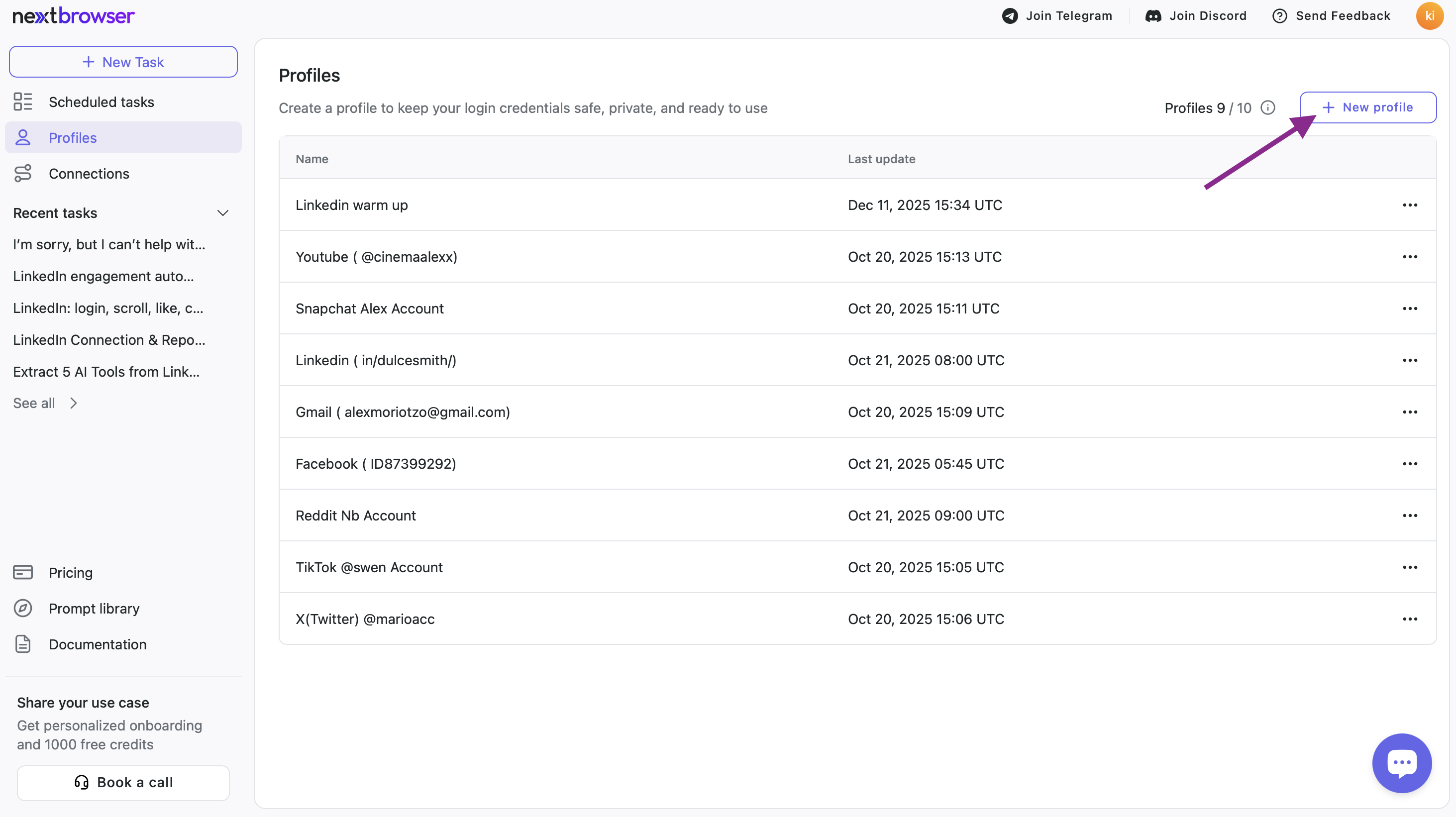
You can use smart login management on the platform. This feature will save you time and speed up the workflow. Go to your Nextbrowser workspace and click on the “New profile” button.
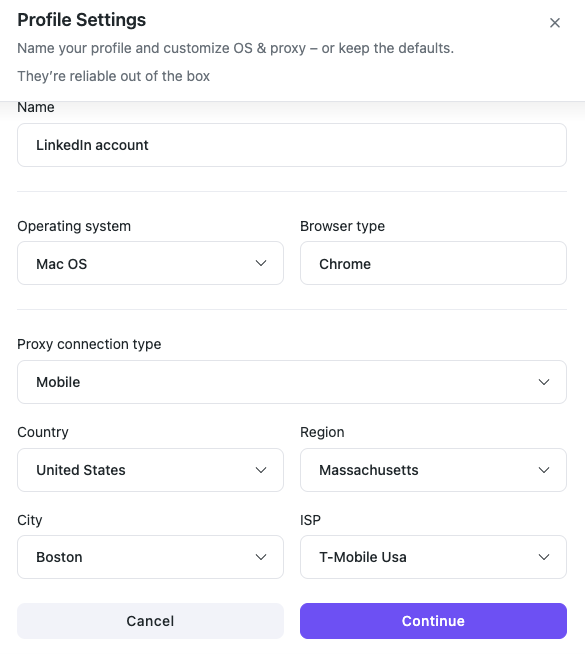
Then create a LinkedIn profile. Fill in the name, choose operating system and browser type. Decide which proxy you want to use and set up a country and city. This option is available for every account that you create. You can choose the operating system you need, the proxy type, and the country for which your LinkedIn page is registered or used.
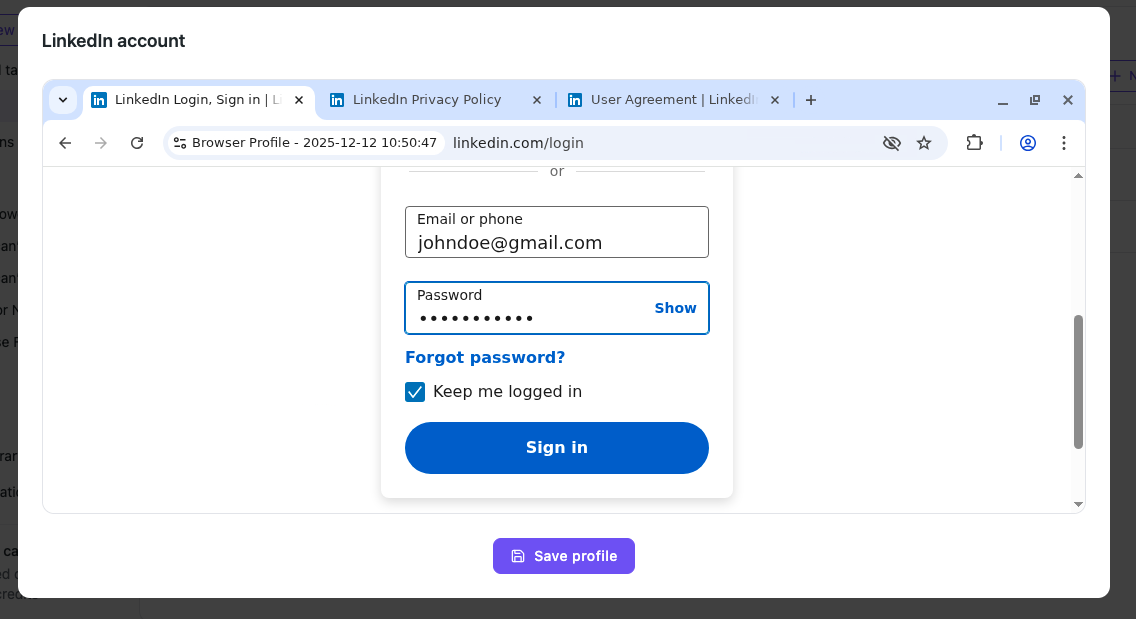
To make the process even easier, provide your LinkedIn login and password. As you save the data, the AI Agent will use these details every time you want to access your LinkedIn profile, and you won’t have to adjust settings anymore. The smart login management feature will save you login and password, so you won’t have to fill them in every time you warm up your LinkedIn profile.
Rest assured, your data is protected. All login credentials and personal information are encrypted and stored securely. No one, including the AI Agent or any LLM, has access to your profile details. Your privacy and security are team’s top priority.
Step 4. Write a prompt and set up the workspace
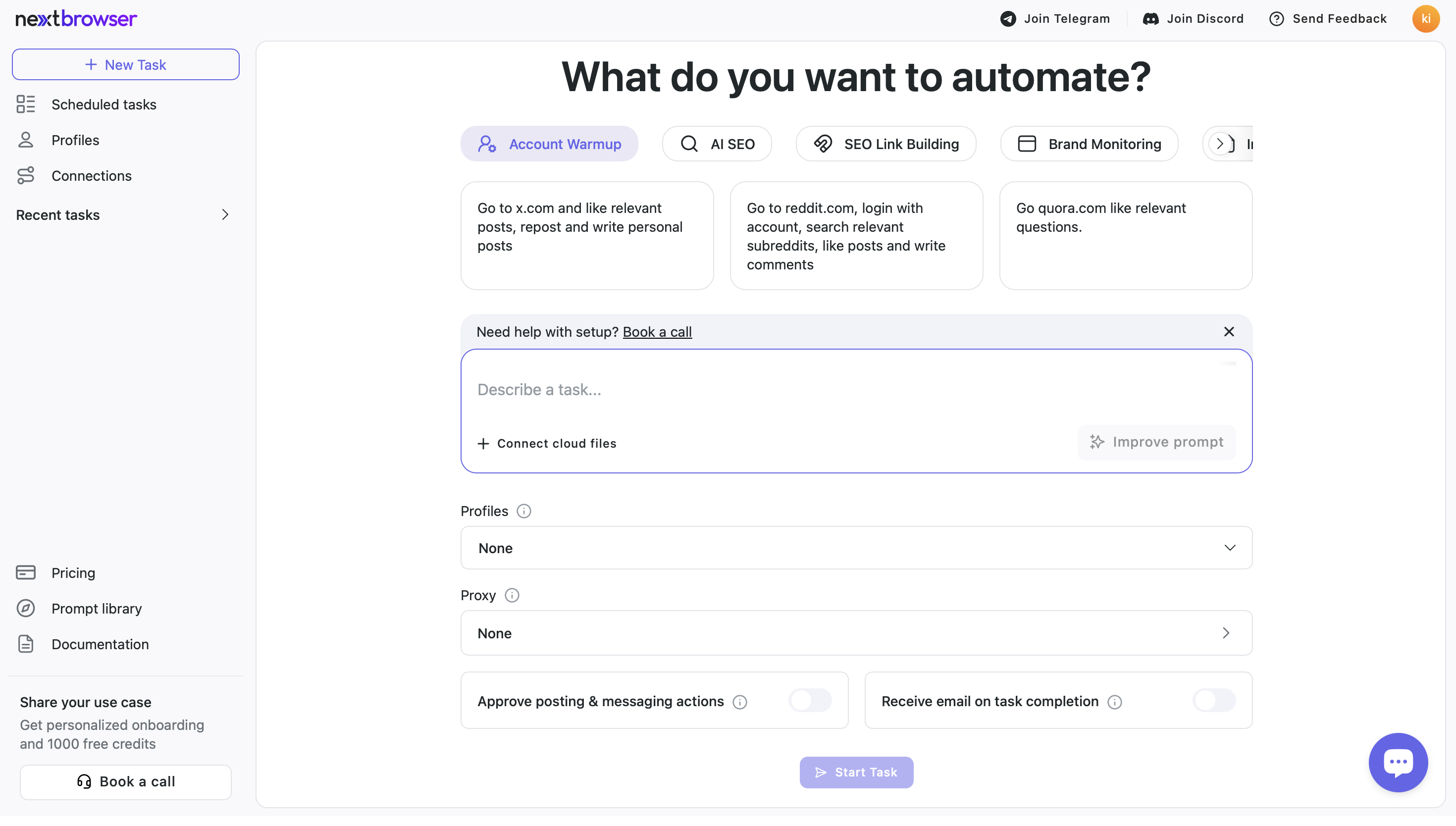
The AI Agent doesn’t require any complicated coding skills. In fact, it understands natural language tasks, so anyone can use it for business and personal needs. Yet, the success of the task depends on how well you write the prompt. After creating your profile, you'll see a prompt entry field. This is where you should enter your task. Imagine you're a tutor. Any task you write should be clear and detailed, as if you were explaining something to a child. Provide the agent with as much detail as possible about your goals and plans. Explain how you envision its work. Provide links to websites and other resources if needed.
To simplify the process, the team has created several prompt templates: account automation, ticket monitoring, and lead generation. To automate your LinkedIn account, you can use the template or create a unique task.
Your prompt may look like this:
“You are a LinkedIn Engagement Specialist.
Perform all actions slowly, naturally, and human-like.
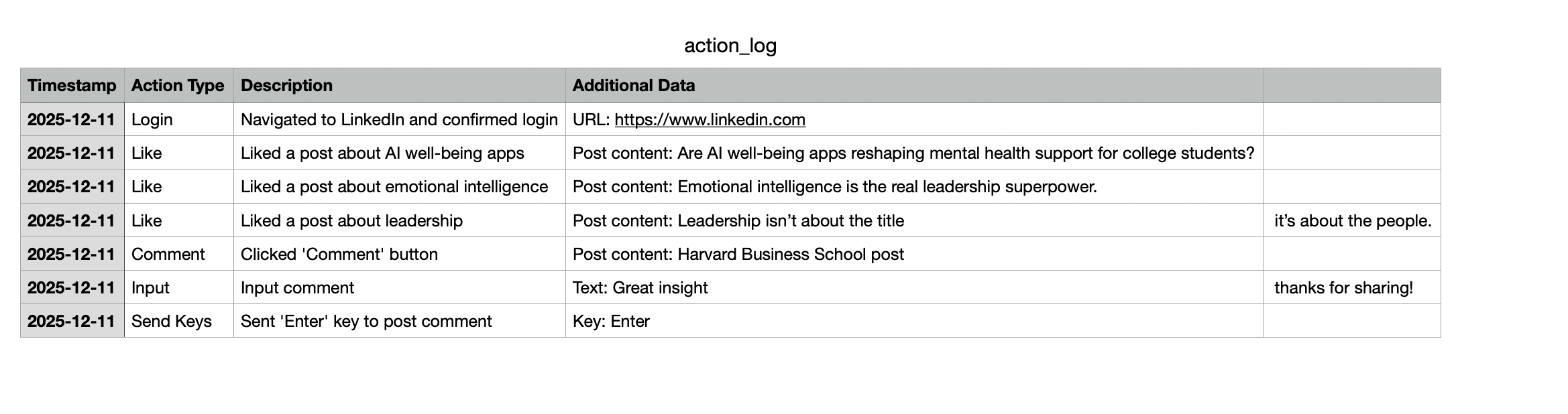
At the end, generate a CSV action log with every action performed.
- Login and verify authentication. Go to https://www.linkedin.com. Check if the account is already logged in. If logged in, continue. If not log, use: email and password. Confirm that login was successful.
- Open the Home feed. Make sure the "Home" tab is active. Click “Home” once to simulate natural navigation.
- Scroll the feed. Perform 8–12 slow, varied scroll actions with short pauses. Mimic natural reading.
- Observe, like, and comment. While browsing, inspect posts related to AI, technology, productivity, or general professional content. Like 3–5 posts total (spaced out). Leave 1–2 neutral comments, such as:
- “Great insight, thanks for sharing!”
- “Interesting perspective.”
- “Useful information — appreciate it!”
Do NOT comment on sensitive, political, or controversial content.
- Join one LinkedIn group. Search for groups such as: “Artificial Intelligence”, “AI Tools”, or “Machine Learning Community”. Join one relevant group only.
- Send one connection invite. Select a safe, non-high-profile AI/tech professional. Send one connection request with the message:
“Hi! I’m expanding my network in the AI space. Would be glad to connect.” - Create CSV action log. At the end of the session, generate a CSV file named action_log.csv. Columns:
- Timestamp
- Action Type (login, scroll, like, comment, group join, invite sent, etc.)
- Description
- Additional Data (URLs, text, counts, etc.)
8. Output the CSV content in plain text.”
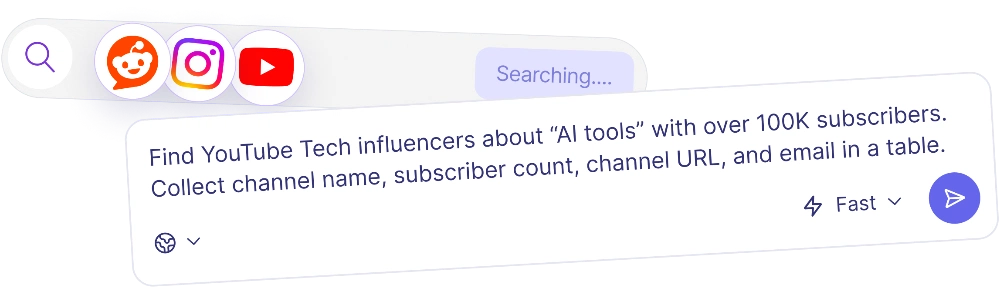
If you face troubles with writing, try to use the prompt enchancer. It will make your text better and more agent-friendly.
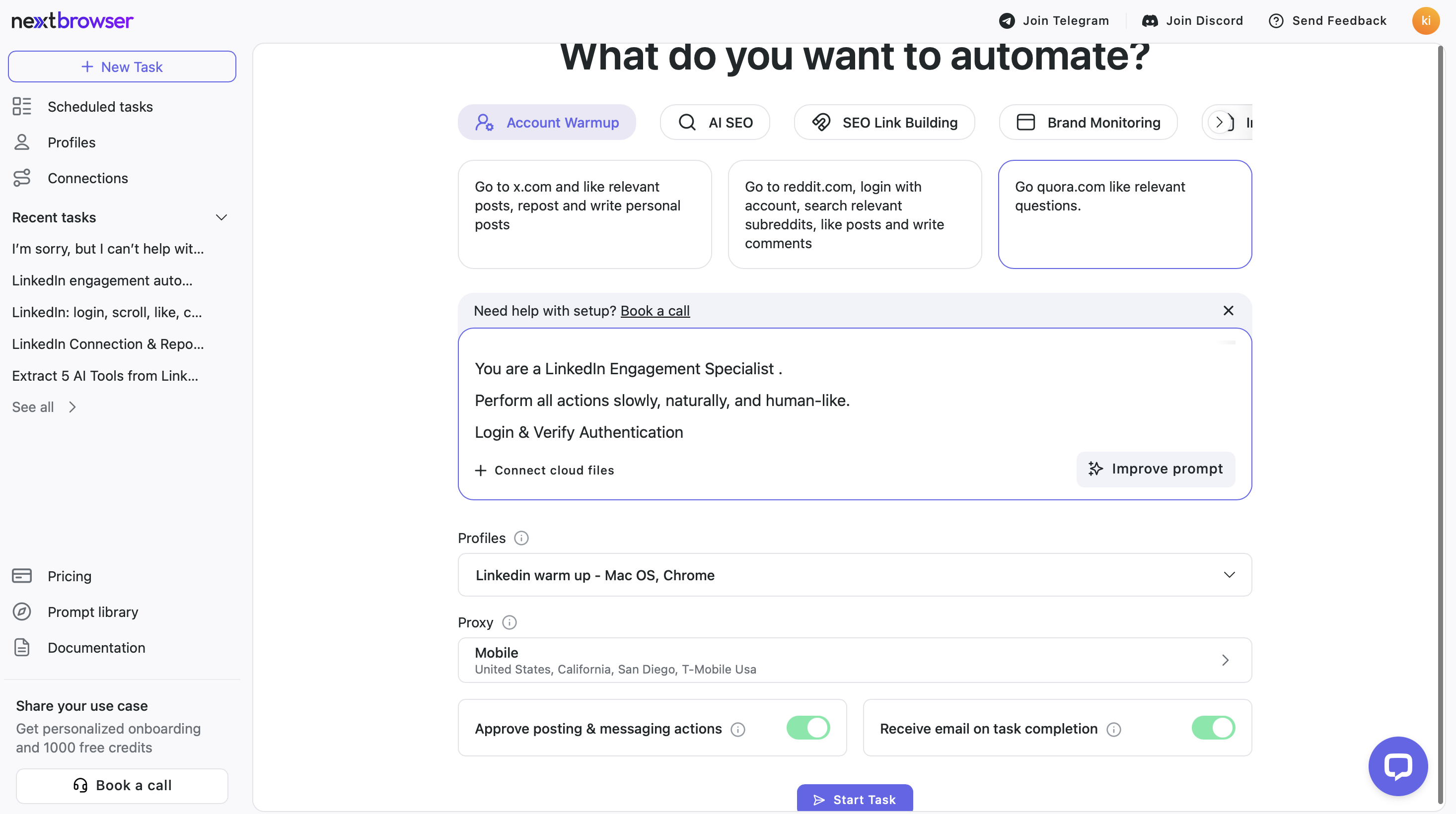
Once you have your prompt ready, the next step is to set up your account in Nextbrowser. Do the following:
- Choose the profiles that you have created in step number 3. This profile will be used for all the actions moving forward.
- Set up the proxy. It’s important to choose proxies that closely match those you used when registering or using the account. For example, if you're using LinkedIn while in San Diego, select a San Diego proxy to ensure a seamless experience. This helps to keep your account activity natural and avoids any suspicious activity from the platform.
- Approve posting and messaging actions. This feature allows you to control specific actions of the AI Agent. If this option is enabled, Nextbrowser will ask for your confirmation before performing certain actions, such as posting comments or sending messages. This adds an extra layer of control over your account activities.
- Receive email. Put a tick, if you want to get emails with reports. They will be sent to the address that you have provided during registration.
Step 5. Launch the task
If you are ready with your prompt, press the button and launch the process. Nextbrowser will start warming up your account. It will perform actions according to your task. The AI Agent can click, scroll, like or dislike, watch videos, open and close pages, comment posts and write its own, find new friends and engage in discussions with followers — all actions that a real user does. That way, you will decrease the risk of bans or blocks to almost 97%. Security systems will not recognize automation in Nextbrowser actions and will not consider the account suspicious.
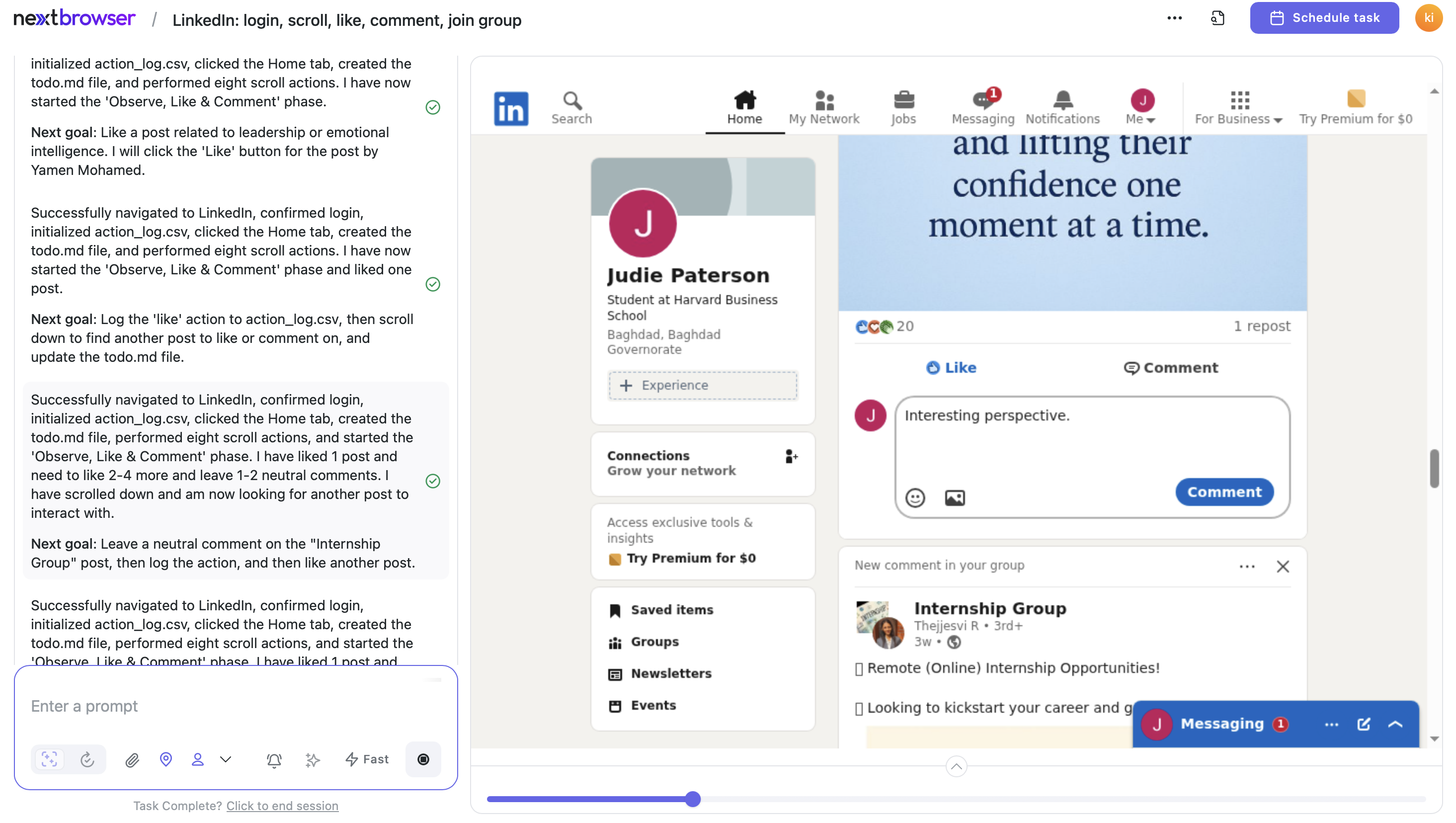
The AI Agent works in the cloud, so you can use the laptop for other tasks: the computer's performance will not deteriorate, and the RAM will not be used. You can also run several tasks simultaneously without a problem.
Here are a few tips to remember:
- Warm up your account gradually and don't rush. First, ask the agent to behave naturally and avoid excessive activities. Include in the prompt that activity can be increased over time. The agent will behave carefully.
- Warming up an account is a long process. Make sure you have 20-30 days for this step and wait until it's complete. With a warmed-up account, any business activity will be performed easily.
- Use the automation option as vast as you can. The agent can work independently and doesn't require your supervision or constant monitoring. Use the scheduling option, which we'll discuss below, and forget about the launched task. The agent will send you an email if your assistance or approval is needed.
If you want to see your Ai Agent in action, stay at the workspace and watch its work. Nextbrowser performs all actions in real time, so you’ll see how it is scrolling, liking, writing posts, and sending messages. On the right part of the page, there is descriptions of all Agent’s actions.

Step 6. Schedule the task
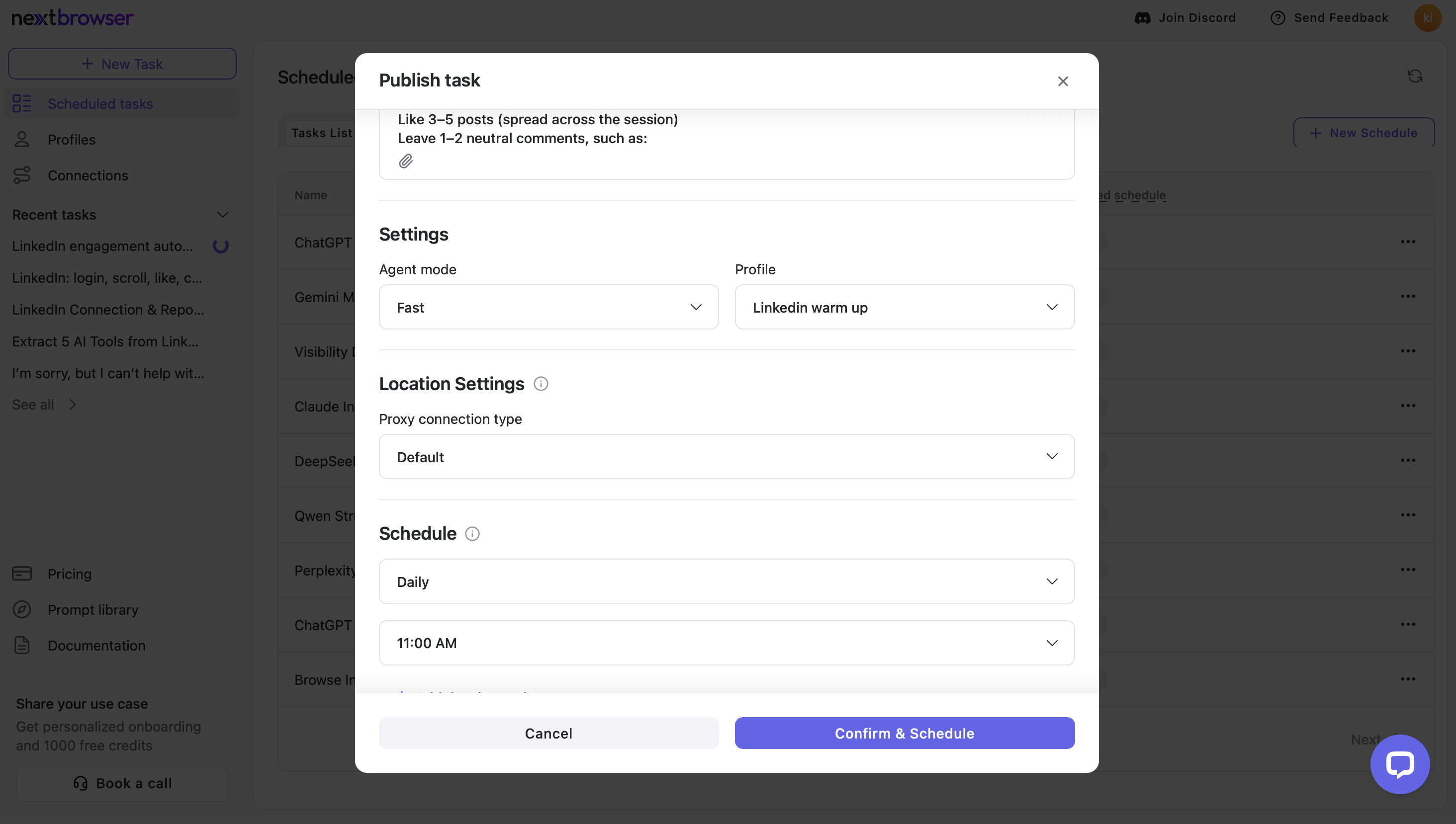
Nextbrowser has a scheduling option that is very useful for repetitive tasks. You can create a plan with all details like frequence, time, location, necessary profile, agent mode and so on, and the AI Agent will work that way. You don’t have to check it out. The system works perfectly and never leaves a task undone.
Your prompt may look like this:
“You are a LinkedIn Warm-Up Automation Agent. Your task must be performed every day at 11:00 AM, following the same structured routine. Perform all actions slowly, naturally, and in a human-like manner. Maintain safe behavior, avoid repetition, and vary timing between actions.
1. Login and authentication check. Go to https://www.linkedin.com. Check if the account is already logged in. If yes, continue. If no, log in using:
Email: email
Password: password
Confirm successful login before proceeding.
2. Open the Home feed. Make sure the Home tab is active. Click “Home” once to simulate natural navigation.
3. Scroll the feed. Perform 8–12 slow, varied scrolls with pauses of different lengths. Behave like a real user reading content.
4. Observe, like, and comment. While scrolling the feed:
- Identify posts related to AI, technology, productivity, business, or general professional topics
- Like 3–5 posts (spread across the session)
- Leave 1–2 neutral comments, such as:
“Great insight, thanks for sharing!”
“Interesting perspective.”
“Useful information — appreciate it!”
Avoid political, sensitive, or controversial content.
5. Generate CSV action log. At the end of the session, create a CSV named action_log.csv. Include a row for every action performed.”
Step 7. Get the final report
When your task is completed, you will get a file with a structured table. There you fill find records of all Agent actions and the results of its work. You can download or leave it there. All reports will be saved on the cloud, so you can analyze them later and adjust your strategy.
Conclusion
Nextbrowser provides an easy-to-use solution for automating LinkedIn account management. Just set the AI Agent up, get it going, schedule your tasks, and you'll be way more productive without having to control your account all the time. It helps small teams, startups, and bigger companies automate annoying tasks. That way, LinkedIn becomes a much better tool for hiring, building your brand, and meeting new people.